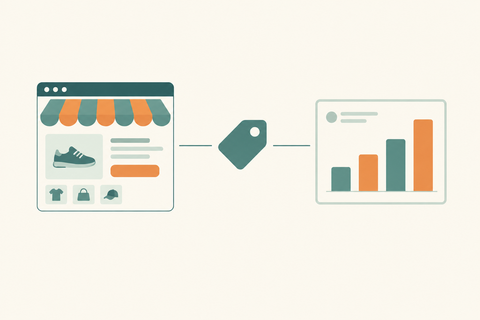
Shopify Image SEO Best Practices
A comprehensive guide to Shopify Image SEO best practices covering file naming, alt text, compression, image formats, lazy loading, structured data, and 5 key FAQs.
Images are one of the most powerful elements on any eCommerce store. They showcase your products, build trust, and drive conversions. But if your images aren't optimized for search engines, you're leaving significant organic traffic on the table. Shopify Image SEO is the practice of optimizing your store's visuals so they rank in Google Image Search, load faster, and contribute to your overall SEO performance. In this guide, we'll walk you through the best practices every Shopify merchant and SEO professional should follow.
1. Use Descriptive, Keyword-Rich File Names
Before uploading any image to Shopify, rename the file with a descriptive, keyword-rich name. Search engines read file names as a signal of what the image contains. Instead of uploading a file named IMG_4892.jpg, rename it to something like shopify-image-seo-best-practices.jpg or blue-cotton-t-shirt-men.jpg. Use hyphens to separate words (not underscores), keep names concise, and include your primary keyword naturally.
2. Write Meaningful Alt Text for Every Image
Alt text (alternative text) is an HTML attribute that describes an image to search engines and screen readers. It is one of the most critical on-page SEO signals for images. Shopify allows you to add alt text directly from the product media editor or theme editor. Best practices include: describing the image accurately and concisely, incorporating your target keyword naturally, keeping it under 125 characters, and skipping phrases like image of or photo of. For example: Men's slim-fit blue cotton t-shirt front view is far more effective than image1.
3. Compress Images Without Sacrificing Quality
Page speed is a confirmed Google ranking factor, and large image files are one of the biggest culprits of slow-loading Shopify stores. Compressing your images reduces file size while maintaining visual quality. Tools like TinyPNG, Squoosh, or Shopify apps such as Crush.pics and TinyIMG can automate compression at scale. Aim for images under 200KB for product images and under 100KB for thumbnails. Shopify's CDN also helps serve images faster globally, but compression remains essential before upload.
4. Choose the Right Image Format
The format you choose impacts both quality and file size. WebP is the modern standard offering superior compression with excellent quality — Shopify now supports WebP natively and serves it automatically to supported browsers. JPEG is best for photographs and complex images with many colors. PNG is best for images requiring transparency such as logos and icons. SVG is ideal for logos and simple graphics as it is infinitely scalable without quality loss. Whenever possible, upload high-quality source images and let Shopify's automatic WebP conversion handle the rest.
5. Set Correct Image Dimensions
Uploading oversized images and relying on CSS to resize them is a common mistake. If your product image display area is 800x800px, there is no need to upload a 4000x4000px image. Oversized images waste bandwidth and slow down your store. Standardize your image dimensions across product categories for a consistent, professional look. Shopify recommends a minimum of 2048x2048px for zoom functionality, but always balance quality with performance. Use a consistent aspect ratio such as 1:1 for products to avoid layout shifts that hurt Core Web Vitals scores.
6. Implement Lazy Loading
Lazy loading defers the loading of off-screen images until the user scrolls to them. This dramatically improves initial page load time and Time to Interactive — both key metrics for SEO and user experience. Most modern Shopify themes (OS 2.0 and above) include lazy loading by default. If your theme does not, you can implement it via the loading=lazy attribute on image tags in your Liquid templates.
7. Leverage Structured Data for Images
Adding structured data (Schema.org markup) to your product pages helps Google understand your images in context. Product schema can include image URLs, which increases the chances of your images appearing in rich results and Google Shopping. Shopify themes often include basic product schema, but reviewing and enhancing it — especially the image property — can give you an edge in competitive niches.
8. Create an Image Sitemap
An image sitemap tells Google about all the images on your site, especially those that might not be easily discoverable through crawling. Shopify automatically generates a sitemap.xml, but it may not include all image data. Third-party SEO apps like SEO Manager can help generate more comprehensive sitemaps that include image metadata, improving your overall crawl coverage.
9. Use Shopify's Built-In CDN
Shopify hosts all store images on its global CDN powered by Fastly. This means your images are served from servers closest to your visitors, reducing latency. You do not need to configure this — it is automatic. However, you should still ensure your images are optimized before upload, as the CDN serves whatever you give it.
10. Audit Your Images Regularly
Image SEO is not a one-time task. As your catalog grows, conduct regular audits to identify missing alt text, oversized files, broken image links, and non-descriptive file names. Tools like Screaming Frog, Ahrefs Site Audit, or Shopify SEO apps can automate this process and flag issues at scale. A quarterly image audit is a good cadence for most growing Shopify stores.
Frequently Asked Questions (FAQs)
Q1. What is image SEO and why does it matter for Shopify stores?
Image SEO refers to the process of optimizing images on your website so they are easily discovered, indexed, and ranked by search engines like Google. For Shopify stores, image SEO matters because product images can appear in Google Image Search, driving additional organic traffic. Optimized images also improve page speed, which is a direct ranking factor and significantly impacts conversion rates and user experience.
Q2. Why is alt text so important for Shopify image SEO?
Alt text is the primary way search engines understand what an image depicts, since they cannot see images the way humans do. For Shopify stores, well-written alt text helps your product images rank in Google Image Search, improves accessibility for visually impaired users, and reinforces your on-page keyword relevance. Missing or generic alt text is a missed SEO opportunity that is easy to fix.
Q3. What is the best image format to use on Shopify?
WebP is currently the best image format for Shopify stores. It offers significantly smaller file sizes compared to JPEG and PNG while maintaining excellent visual quality. Shopify automatically converts uploaded images to WebP for browsers that support it. For images requiring transparency, use PNG as a source. For photographs, JPEG is a reliable fallback. Always upload the highest quality source image you have and let Shopify handle format optimization.
Q4. How can I compress Shopify images without losing quality?
You can compress images before uploading using free tools like TinyPNG, Squoosh, or ImageOptim. For bulk compression within Shopify, apps like TinyIMG, Crush.pics, or SEO Image Optimizer automate the process across your entire product catalog. Aim to keep product images under 200KB. Lossy compression is generally acceptable for product photos, while lossless compression is better for logos and graphics where sharpness is critical.
Q5. Does image SEO affect my Shopify store's page speed and Core Web Vitals?
Absolutely. Images are typically the largest assets on any eCommerce page, and unoptimized images are one of the leading causes of poor Core Web Vitals scores — particularly Largest Contentful Paint (LCP). By compressing images, using the correct dimensions, implementing lazy loading, and leveraging Shopify's CDN, you can dramatically improve LCP and overall page speed. Better Core Web Vitals directly contribute to higher search rankings and lower bounce rates, making image optimization a high-impact SEO investment.